One of the questions we get asked often at Crunch.io is "How do I best present data in a dashboard?"
In this quick guide, we'll share the best practices we've learned over the years from building dashboards and seeing a variety of dashboards built by our clients with Crunch.io's drag-and-drop dashboard builder.
Tips to Help Data Interpretation
- Don't feel you need to put everything on the dashboard.
The point of a dashboard - as opposed to people using the rest of Crunch.io - is that it gives at-a-glance comprehension of the key information.Ask yourself. What is the story I'm telling here?
If someone doesn't have much time and they have lots of competing things vying for their attention, you need your dashboard to convey the most important things with the least amount of effort on the part of the viewer. That means concision. - Trim your charts down to the most important point you're trying to make.
If it's the ongoing battle between Coca Cola and Pepsi that your client cares about, hide all other lines. - Give your analyses space.
Remember that some users may have smaller screens than you. Something that looks OK for you might be cramped or difficult to read for someone on a smaller screen.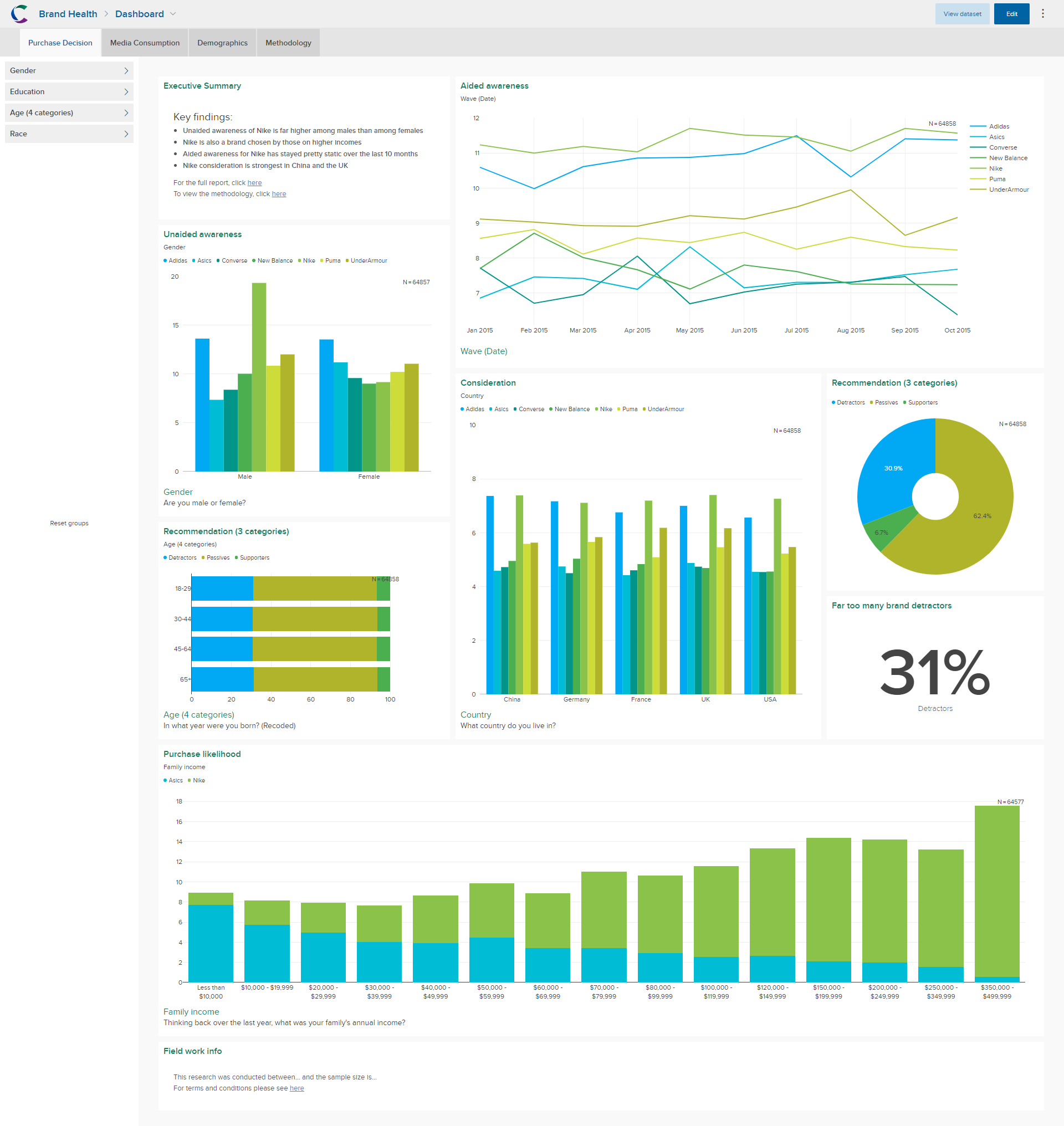
An interactive dashboard built with Crunch.io - Use color to help you tell your story.
You want your dashboard to be branded, but finding a good complementary color for your main color will allow you to draw attention to bars, for example, that you want the viewer to notice. Try putting your client's brand in a different color so that it pops at first glance. - Make use of tabs.
Your users will be able to navigate the dashboard more easily if the analyses are grouped by theme. You might have one tab for Brand Health Metrics, another for Media Consumption Habits and another for Demographics. This has the additional advantage of your dashboards loading more quickly too, because they only load what's needed for each tab, rather than the whole thing at once.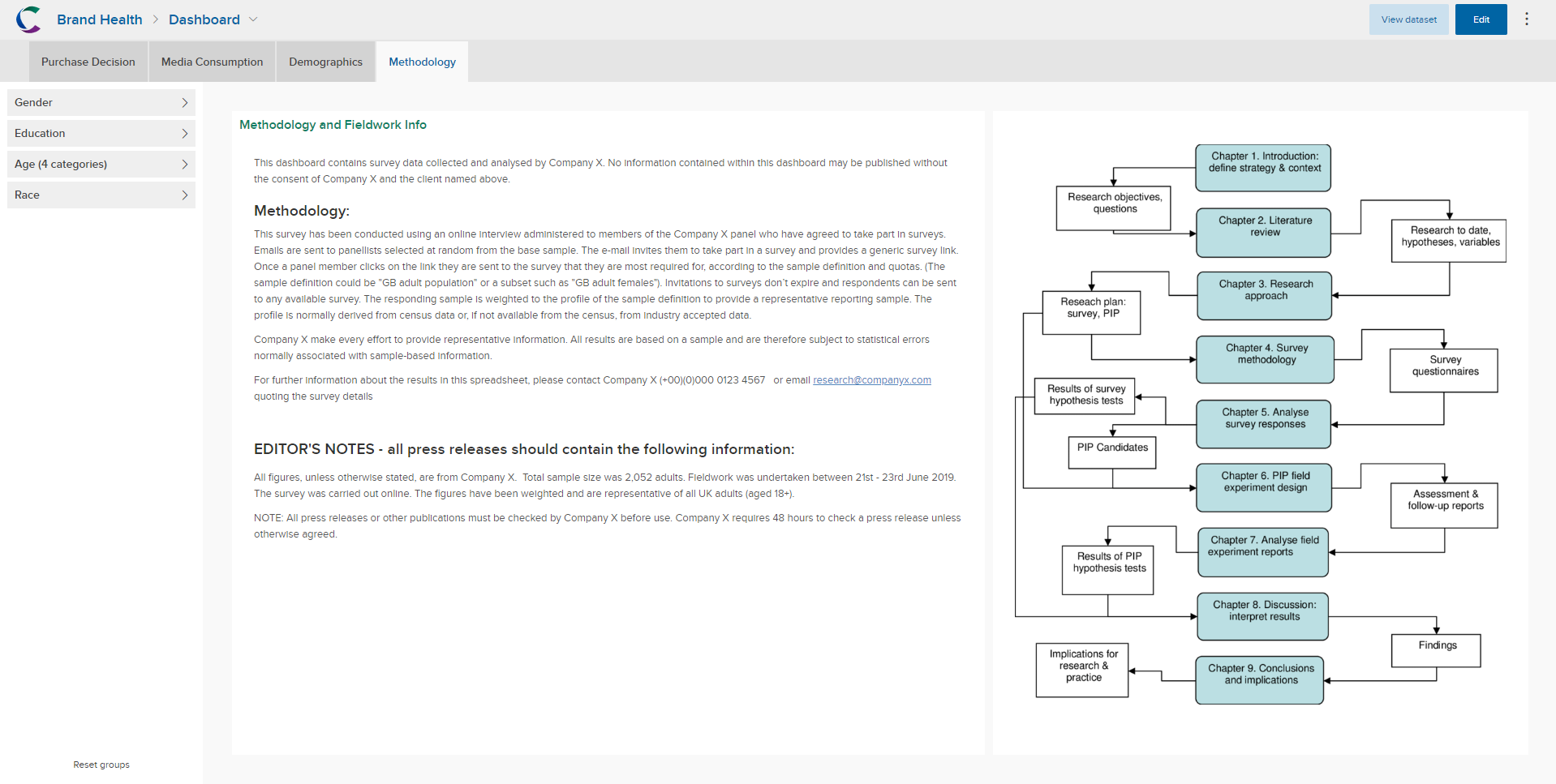
Use tabs to help your users navigate the content quickly and easily. - Combining line charts with KPI widgets can work well.
The KPI can show the latest value, and the line showing the trend leading up to it. - If you have a lot of written analysis you want to add to your tiles, consider making them each full width and height.
Then your dashboard will resemble a vertically scrolling PowerPoint presentation, and each tile can have lots of room for analysis added. Remember you have 3 editable text fields on each tile - Title, Description and Filter Description - and you are free to put anything you like in each. If you do take this approach, don't forget that the export order is determined not by the layout of the dashboard but by the order in the deck. If you want to make sure that your export order matches the order on screen, you need to drag-and-drop items in your deck into the order you want. - Use rich-text tiles to add helpful information.
For example, you can add executive summaries, methodology/fieldwork info, links to privacy notices and terms & conditions to tiles. You can make these tiles only one layout-square tall, which means you can add one as a footer to each tab, which can work well. You can even have a dedicated Methodology tab, where you put everything the user needs to know. Remember you can include links to other URLs, so you can point people to promotional pages on your website, for example.
Tips for a Visually-Compelling Dashboard
- Use a variety of visualization types.
Our eyes get bored of seeing the same types of stimulus again and again. - Avoid using too many tables.
Using the occasional table of data can look ok, but having lots of them looks boring and uninviting to wade through. - Try to offset your layout.
A layout that looks more like brickwork looks nicer than something with strong vertical columns. - Use a limited color palette.
Dashboards that look like a rainbow look less professional than a focused color scheme.
About Crunch.io
Crunch.io is a modern survey data analysis platform developed by survey experts, market researchers, data scientists, and engineers.
We were frustrated by the current tools used to compile, analyze, visualize and deliver survey data. So, we built Crunch.io to bring simplicity and usability to survey data analysis.
With Crunch.io, you can build crosstabs with a drag-and-drop, and a graph with one click. Export real PowerPoint objects. Build and deliver a dashboard in 5 minutes.
If you're interested in learning more about Crunch.io dashboards, check out our recent recorded webinars or contact us below:
- Build an Interactive Dashboard for Survey Data in 5 Minutes
- Survey Tracker Dashboards: Built in an Hour & Automatically Updated